Sending Slack notifications from Jenkins (2025)
Created:
目次
Send Slack notifications from Jenkins
Here’s how to send Slack notifications for Jenkins job failures and other build events. A successful notification looks like the following (the exact text depends on your settings):

The setup has changed over the years, so old blog posts often no longer work. This is the approach that worked for me as of April 2025.
Environment
- Jenkins: 2.440.1
- Slack Notification plugin: 629.vf00ea_cb_40d53
These versions are already somewhat old in 2025. Also, my Jenkins instance has many plugins installed, so your environment may behave slightly differently.
Steps (mostly following the official README)
Plus a few notes of my own.
Install the plugin
From Jenkins “Plugin Manager” (/manage/pluginManager/available), install Slack Notification.

Install the Slack app
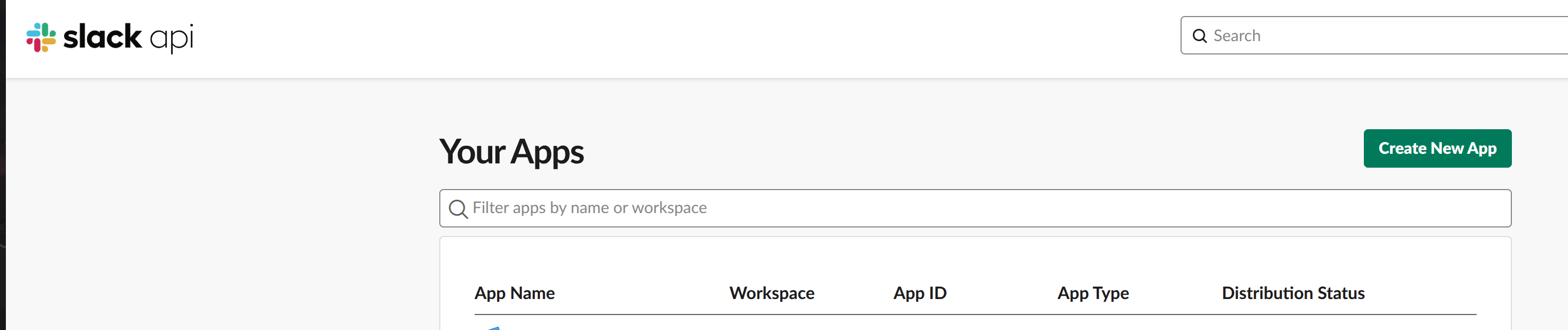
Go to https://api.slack.com/apps and click “Create New App”.
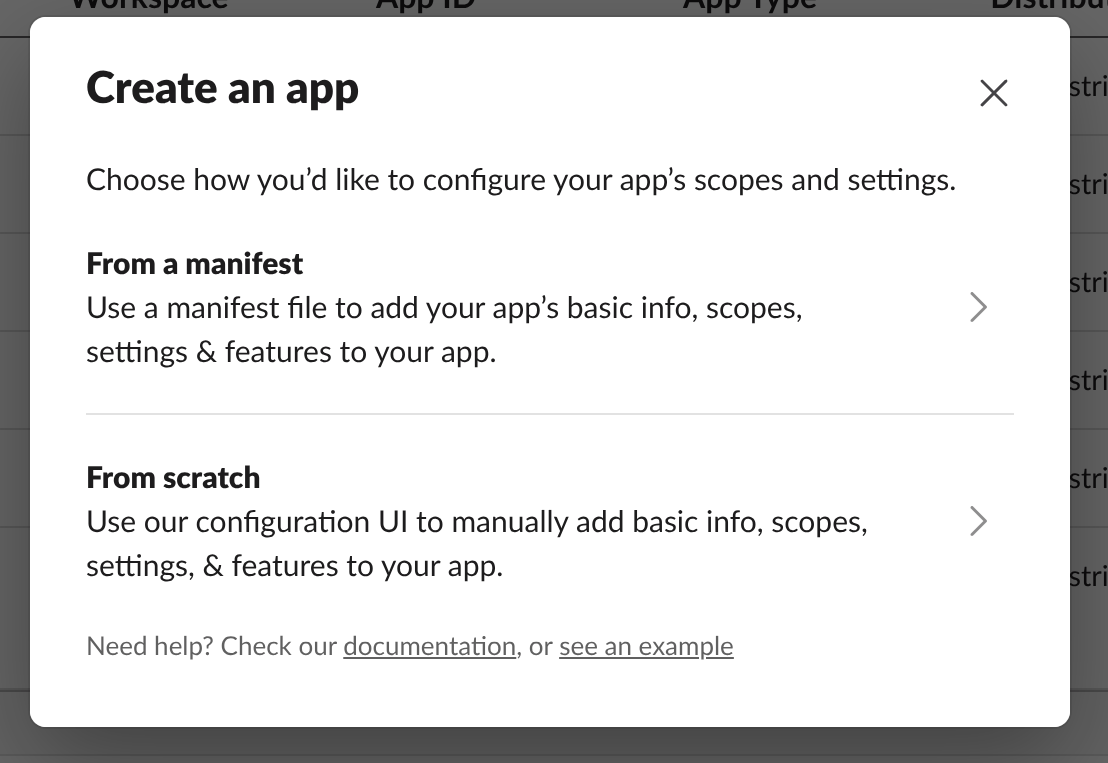
Create from manifest
In the modal dialog, choose From a manifest.
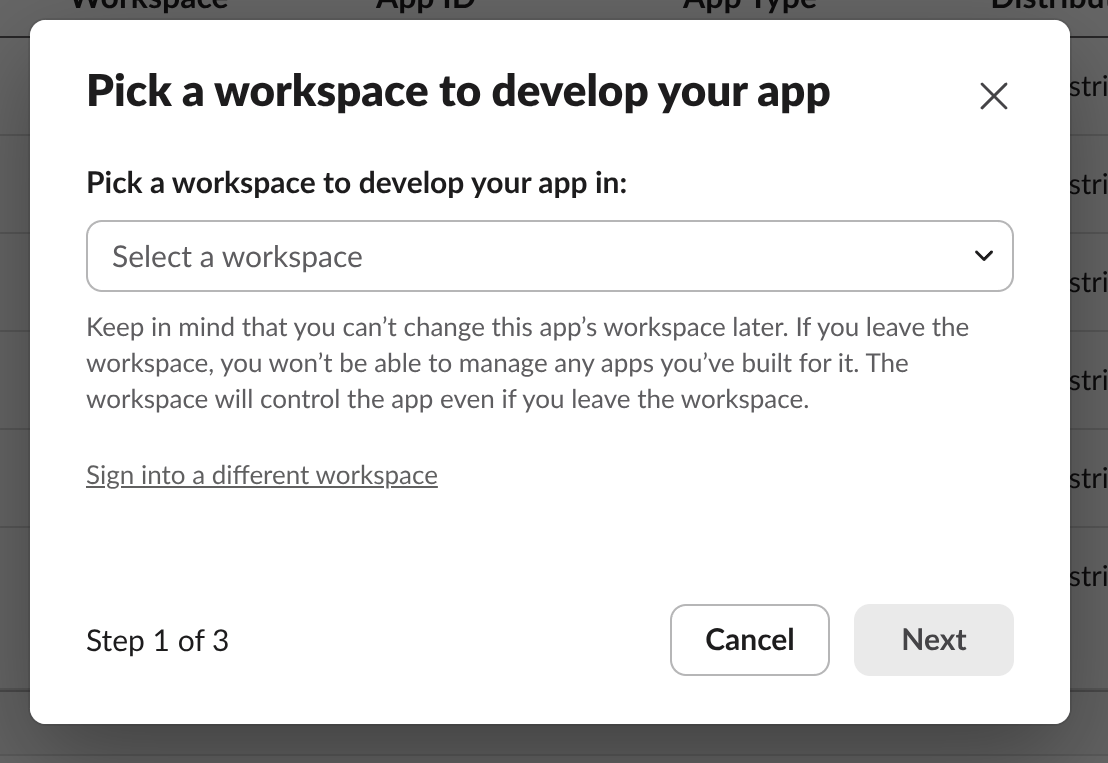
Select the workspace and click “Next”.
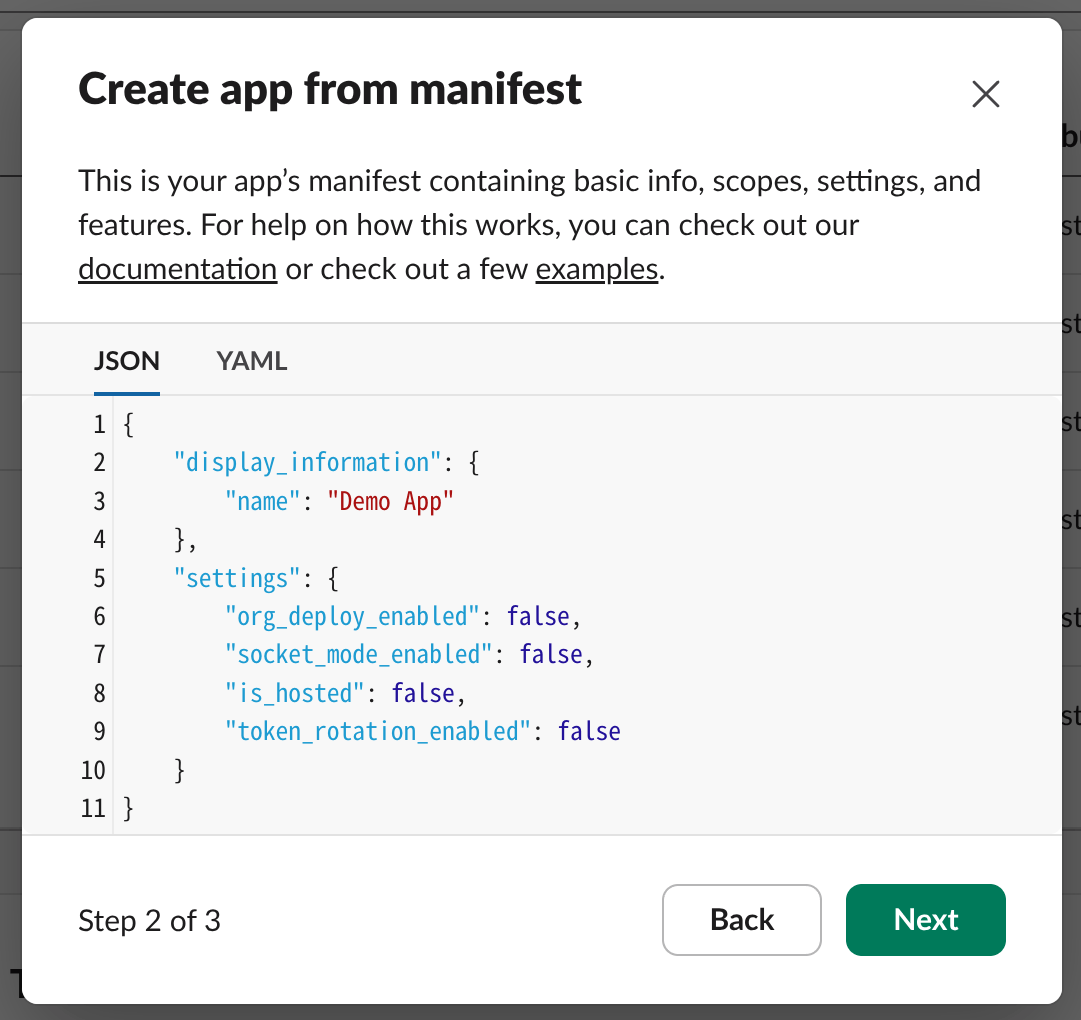
Switch to the YAML tab, clear the pre-filled content, and paste the YAML from the official README:
display_information:
  name: Jenkins
features:
  bot_user:
    display_name: Jenkins
    always_online: true
oauth_config:
  scopes:
    bot:
      - channels:read
      - chat:write
      - chat:write.customize
      - files:write
      - reactions:write
      - users:read
      - users:read.email
      - groups:read
settings:
  org_deploy_enabled: false
  socket_mode_enabled: false
  token_rotation_enabled: false
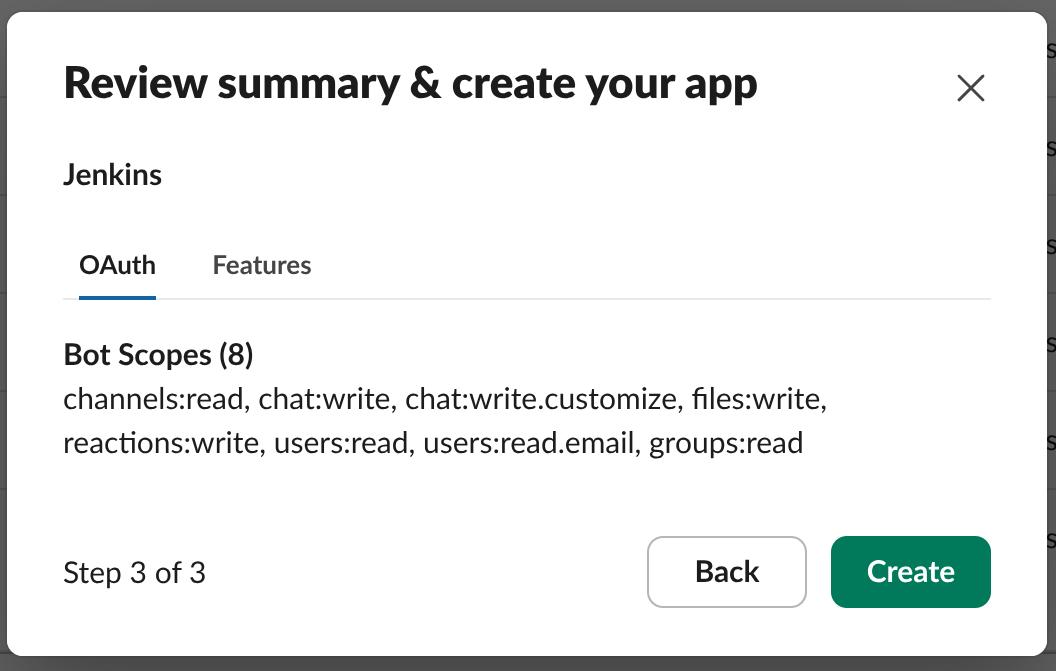
Review summary & create your app
Confirm the permissions and click “Create”.
Get the token
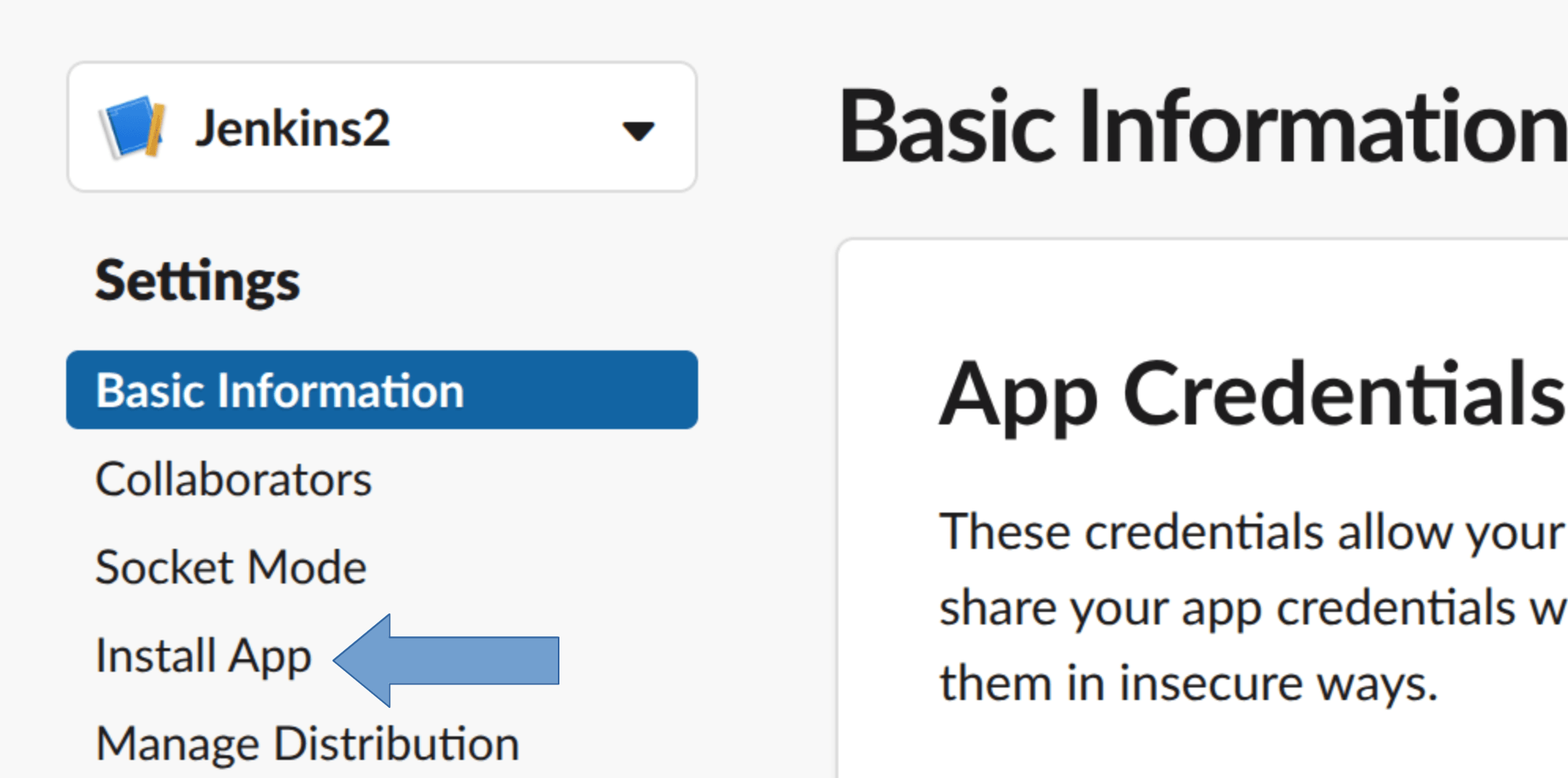
On the “Basic Information” page, open “Install App” (or select the app at https://api.slack.com/apps).
Click “Install to {workspace}” and approve permissions.
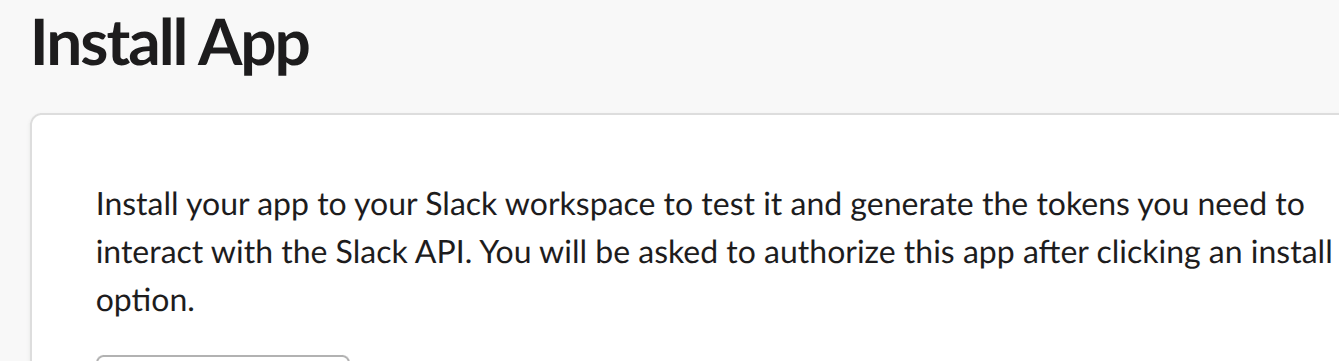
After installation, copy the Bot User OAuth Token (xoxb-...). We’ll save it in Jenkins.
Invite the app to the channel
Open the target Slack channel, go to the members list → “Integrations” → “Add apps” → add the Jenkins app.

Store the token in Jenkins
In Jenkins, go to “Manage Jenkins > System” (/manage/configure) and add a credential in the “Slack” section.
“+Add” → “Jenkins”. Then a modal dialog like the one below will appear.
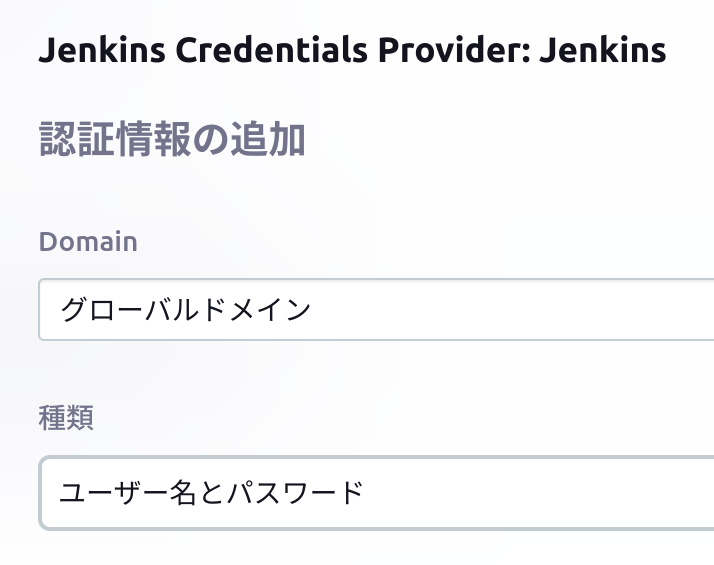
- Change type to Secret text
- Paste the Bot token (
xoxb-...) into Secret - Description optional; ID can stay empty
- Create
If the modal does not open, you can also add a credential via /manage/credentials/store/system/domain/_/newCredentials.
Configure the Slack plugin
| Field | Value |
|---|---|
| Workspace | Slack workspace used above |
| Credential | The Slack Bot Token (Secret Text) credential you just added |
| Default Channel | Target channel (e.g., #jenkins) |
| Custom Slack App Bot User | ✅ enable |
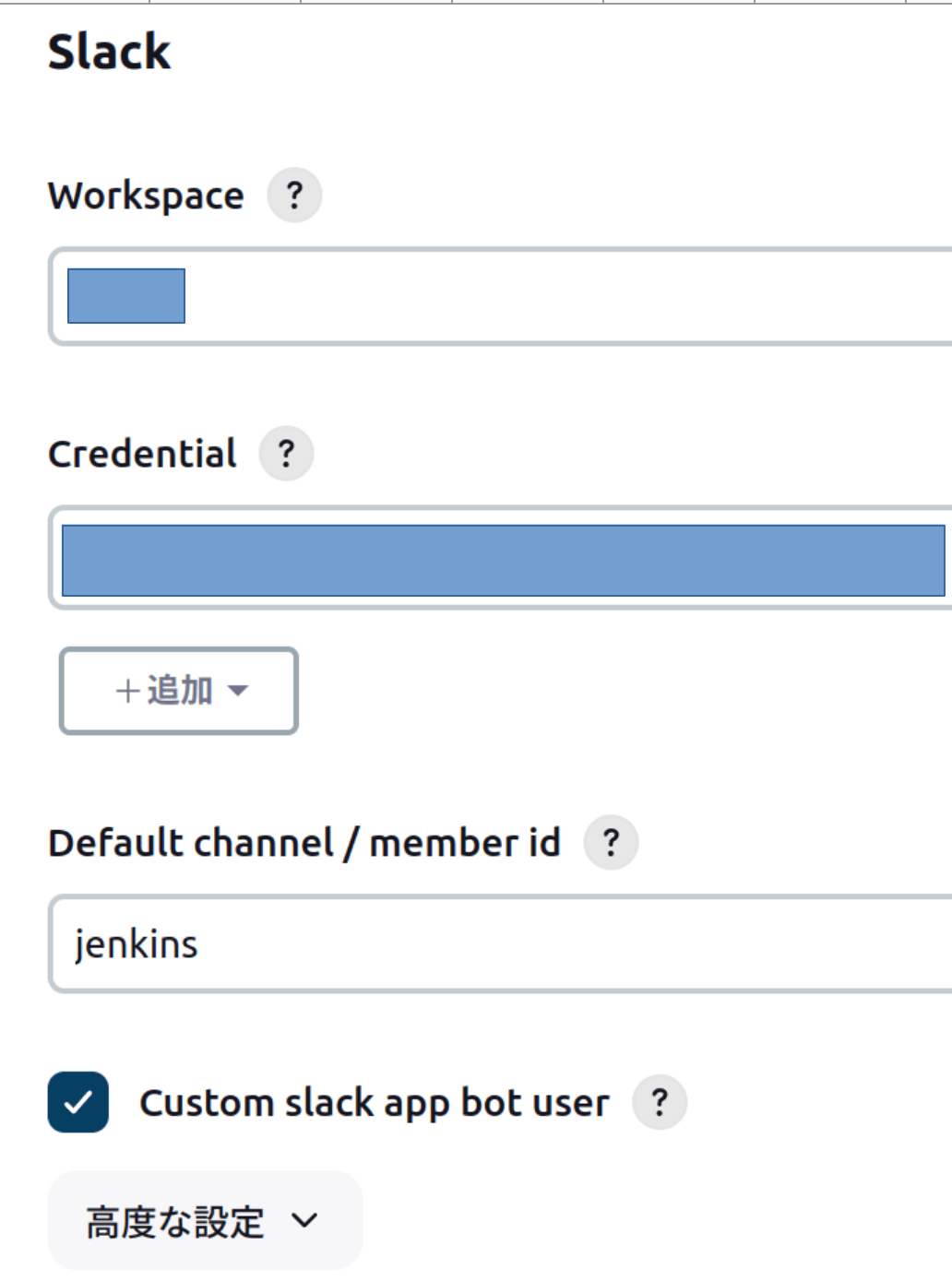
- Channel name with or without
#works. - Channel ID also works (more resilient to renames).
Test
Click “Test Connection”. If Slack receives a test message and Jenkins shows “Success”, you’re good.
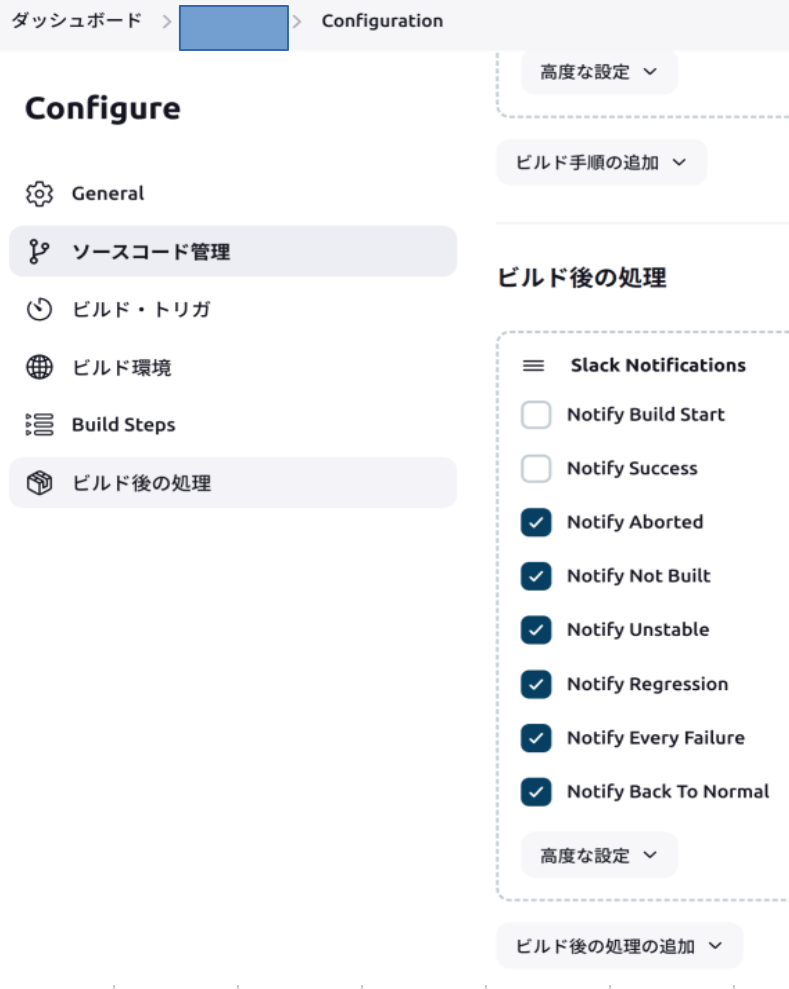
Add to jobs
In each job’s config, go to the bottom “Post-build Actions” and add “Slack Notification”. Configure which events (success/failure, etc.) should send messages.
If it fails
- Check Jenkins logs:
sudo journalctl -u jenkins - Also check the browser DevTools console for front-end errors.