Formatting an SSD with Btrfs on Linux
Created:
目次
Formatting an SSD with Btrfs on Ubuntu Desktop
In this article, I will explain the steps and important considerations when formatting an NVMe SSD—previously used on Windows and formatted with NTFS—into Btrfs on an Ubuntu Desktop environment.
While Btrfs makes it difficult to read the disk from Windows, if you intend to use it exclusively on Linux, you can expect improved stability and potentially better performance compared to NTFS.
Although ext4 is also a viable option, Btrfs offers advantages such as snapshotting and transparent compression.
Environment
- OS: Ubuntu 22.04.4 LTS
- Target device (partition):
/dev/nvme0n1p1(converted from NTFS to Btrfs)
1. Checking Disk Status
First, check the current mount status and filesystem.
df -hv
lsblk -f-
df -hvDisplays usage statistics for mounted filesystems. -
lsblk -fShows device structure and filesystem types (e.g., ext4, ntfs, btrfs).
> df -hv
Filesystem      Size  Used Avail Use% Mounted on
tmpfs           3.2G  2.5M  3.2G   1% /run
/dev/sda2       915G  856G   13G  99% /
(omitted)
/dev/nvme0n1p1  932G  172G  760G  19% /media/username/nvme0
> lsblk -f
(omitted)
nvme0n1
└─nvme0n1p1 ntfs volume 8008198808197DFA 759.6G 18% /media/username/nvme0From this output, you can confirm that /dev/nvme0n1p1 is currently formatted with NTFS.
2. Unmounting
Before formatting with Btrfs, unmount the target device.
sudo umount /media/username/nvme0umountUnmounts the filesystem.- Formatting cannot be performed on a mounted device, and doing so will result in an error such as:
ERROR: /dev/nvme0n1p1 is mounted - In my case, the
umountcommand produced no output but completed successfully.
3. Formatting with Btrfs
sudo mkfs.btrfs -L nvme0 -f /dev/nvme0n1p1If the command is not found, install it with:
sudo apt install btrfs-progsAll data will be erased during formatting.
mkfs.btrfsCreates a Btrfs filesystem.-L nvme0Assigns a label (name) to the filesystem.-fForces overwriting of the existing filesystem (NTFS in this case).
Although this was a 1TB SSD, the process completed in about one second in my case.
4. Verifying the Filesystem
blkid /dev/nvme0n1p1This command allows you to verify the UUID (used later for mount configuration) and confirm that the filesystem is now Btrfs.
From my experience, immediately after formatting, the TYPE was still shown as ntfs.
In my case, rebooting resolved this and the correct filesystem type was recognized. (There may be other ways to refresh it… But I rebooted.)
5. Automatic Mount Configuration (fstab)
At this point, formatting with Btrfs is complete. The following steps are optional, as you can manually mount the device each time.
However, for an internal SSD, it is more convenient to have it mounted automatically at boot.
To enable automatic mounting, edit the fstab file:
sudo vim /etc/fstabExample entry:
UUID=ec59293e-face-4757-b787-7e85e1a559a0 /media/username/nvme0 btrfs compress=zstd:3,noatime,autodefrag,nofail,x-systemd.automount 0 0-
UUID Obtained from the
blkidcommand. -
/media/username/nvme0Mount point directory. Create it in advance. -
compress=zstd:3Enables transparent compression. While options likelzoexist,zstdoffers a good balance of speed and compression ratio. The number indicates compression level; 3 is the default and generally well-balanced. I hardly notice any lag -
noatimeDisables access time updates, which may slightly improve performance. -
autodefragEnables automatic defragmentation. -
nofailAllows the system to boot even if mounting fails. -
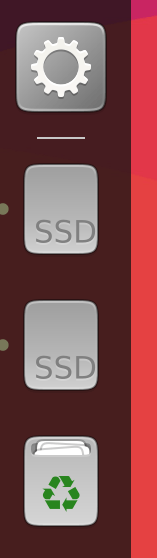
x-systemd.automountIn my X11 desktop environment, this setting caused the disk icon to appear on the desktop at boot. In my experience, it is not required for automatic mounting itself and behavior may differ under Wayland.
6. Setting Mount Point Permissions
By default, the mount point is owned by root, which can be inconvenient. Change ownership to allow a regular user to write:
sudo chown -Rv $USER:$USER /media/username/nvme07. Checking Compression Status
One of the advantages of Btrfs is file compression. To verify it, place some files in the mounted directory and run:
sudo compsize /media/username/nvme0/If the command is not available, install it:
sudo apt install btrfs-compsize-
compsizeDisplays compression statistics for Btrfs. -
When zstd compression is enabled, the output looks like:
Type       Perc     Disk Usage   Uncompressed
zstd        19%      4.0G          20G
This indicates approximately an 80% compression ratio.
Compression efficiency is higher for text-heavy data and lower for already compressed data such as images.